Chat
| Diese Seite gibt es auch auf Deutsch. |
If your administrator has set up a chat backend (see chat configuration), you can chat with single persons or in groups, the so-called rooms. Chat and telephony work together: you can call someone from a chat, chat during a call, and every room can have its own video conference.
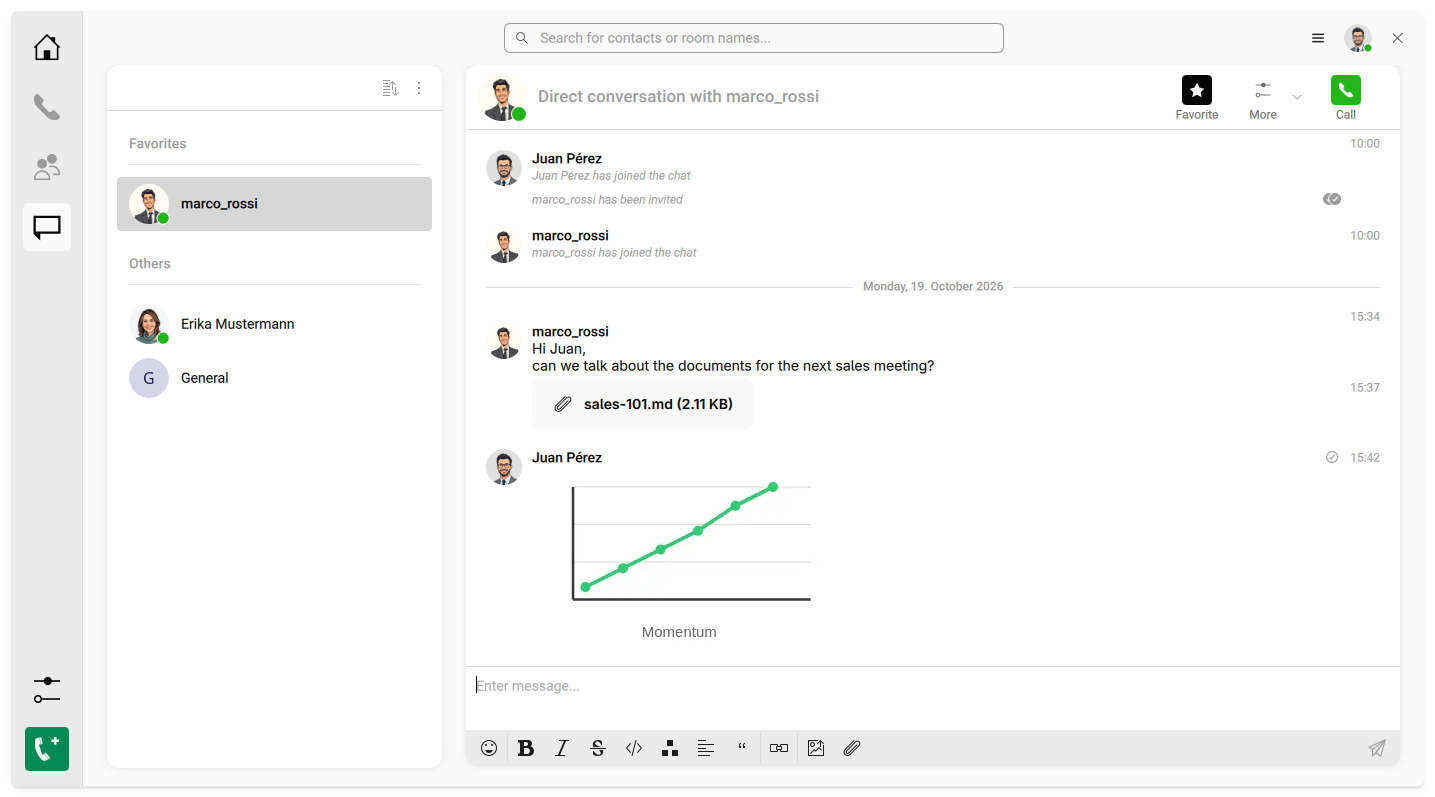
The chat page shows your rooms on the left, grouped into favorites and others, and the selected room on the right.
Verifying your device
The first time you open the chat, GOnnect asks you to verify your device. This protects your messages: only verified devices can read encrypted messages.
-
Open the chat in the vertical menu bar.
-
Choose one of the offered methods:
-
Recovery key: enter your recovery key. You get it from your administrator or wrote it down during the setup.
-
Cross signing: confirm with another device where you are already logged in. Both devices show the same symbols. If they match, click Confirm, they match.
-
-
GOnnect shows "Your device has successfully been verified!".
If you are unsure which method to use, ask your administrator.
Chatting
-
Chat with a person: click Search user… and select the person. You can also start a direct chat from the search results.
-
Join a room: Search public room…
-
Create a room: Create room…
-
Send a file: drag the file into the chat window, paste it from the clipboard or use the upload button. While a large file is being sent, the message shows Uploading….
-
Format a message: use the format bar below the input field (bold, italic, strikethrough, code, quote, link) or the emoji picker.
-
React to a message: the menu of a message offers Reply…, Edit message… and Remove message…, as well as reactions and pinning. Edited messages are marked as such.
When you open a room, the line New messages marks where your unread messages start.
Right-click a room in the room list for further options, for example Toggle favorite, Edit room…, Invite users… or Leave room….
Threads
In a busy room, answers easily get lost. A thread lets you discuss a single message without flooding the room.
-
Open the menu of the message and select Reply in thread….
-
Write your answer. It only appears in the thread.
-
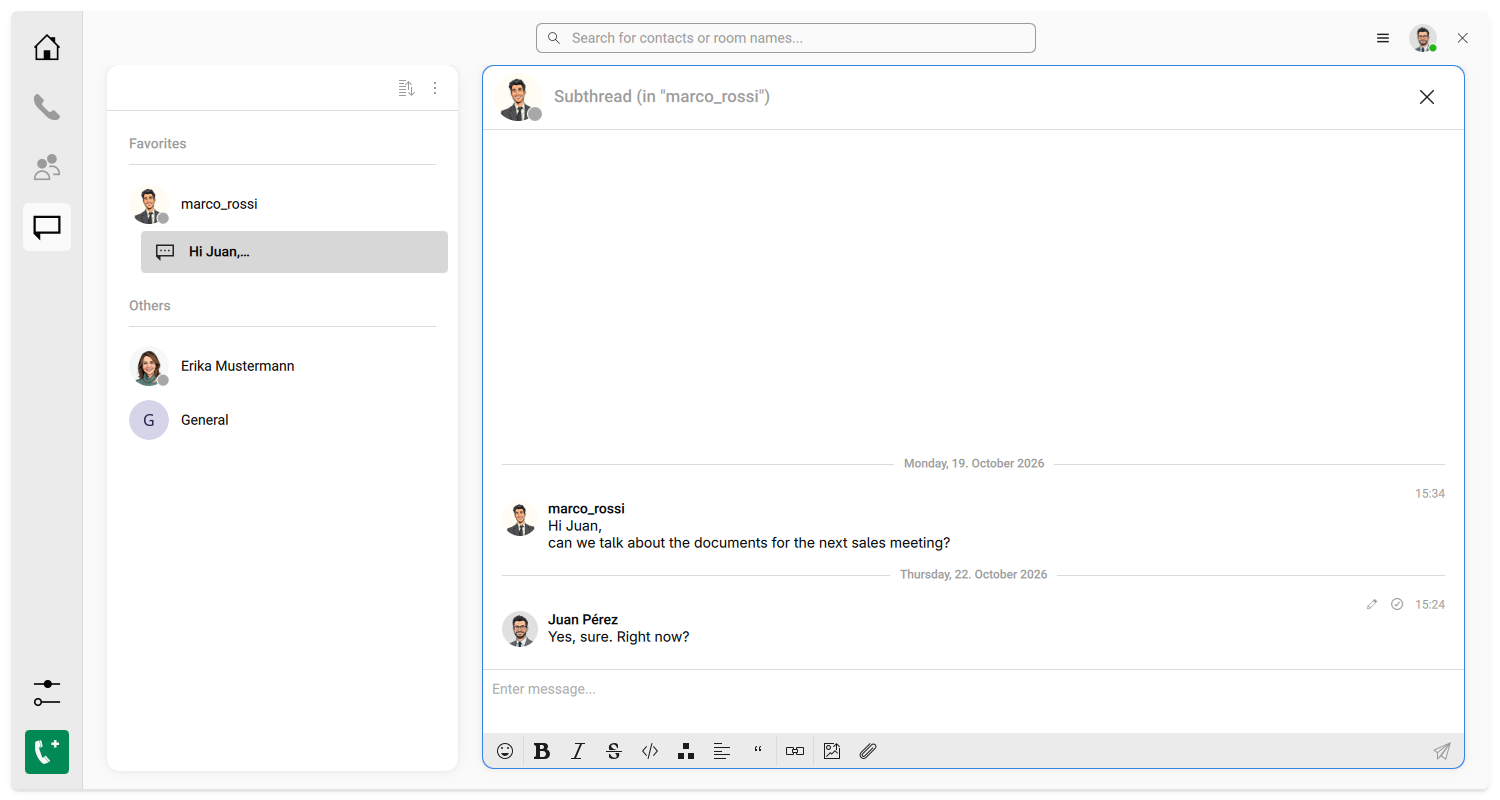
Messages with a thread are marked with Thread. Use Open thread… to read it.
-
Use Close thread to return to the room.
The threads of a room are listed directly below the room in the room list.
Chat and telephony
- Call from a chat
-
In a direct chat, click Call at the top. While the call is active, the button changes to Hang up. If the person has several phone numbers, right-click the chat in the room list to choose one.
- Chat during a call
-
If you already have a chat with the other person, the call screen shows a Chat tab in the side panel next to Person(s). The chat stays available after a Jitsi Meet upgrade.
- From the history to the chat
-
Right-click an entry in the History and select Chat.
Chat and video conferences
A room can have a fixed video conference if set up, for example for the daily team meeting. Everybody meets in the same conference room without having to look for a link.
-
Start or join the conference: click Conference at the top of the room, or right-click the room in the room list and select Join conference.
-
Leave the conference: click Leave and then Leave conference. If you are a moderator, you can close the conference for everybody with End conference for all.
-
Set the conference: users who may manage the room set the conference address by right-clicking the room and selecting Edit conference url…. Only conferences on the server configured for your organization can be opened in GOnnect.
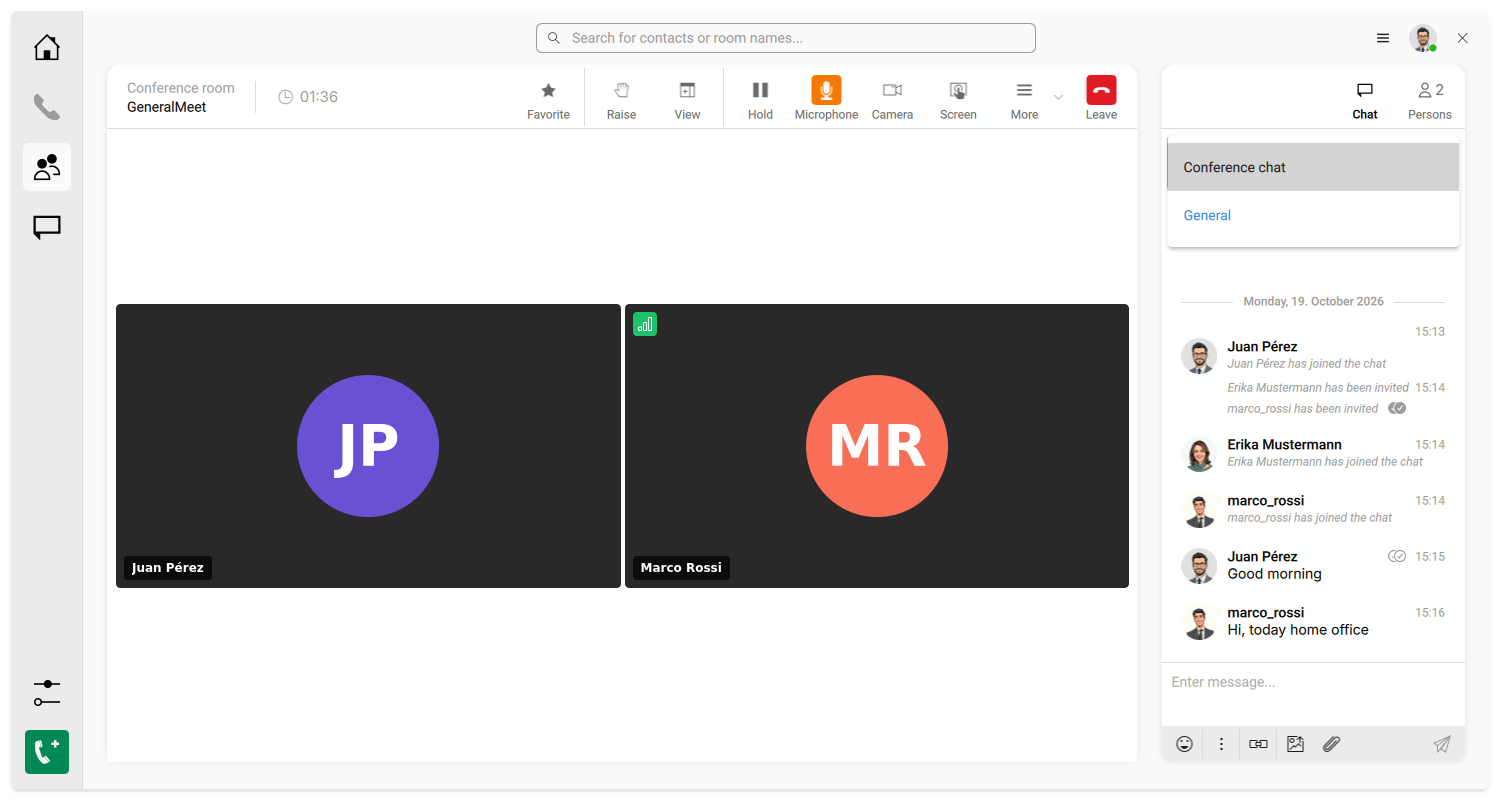
While the conference is running, the side panel on the right shows the chat. At the top you choose which chat to see: the Conference chat (only for this conference, gone afterwards) or the room the conference belongs to. What you write in the room is kept after the conference.
Notifications
New messages are shown as desktop notifications, according to the notification settings of the room. There are no notifications for the room you are currently reading, and on Linux none while you are sharing your screen, so others can’t see your messages.
Your status
Your presence status and status text are shared with the chat. See your presence status.