Setup & Configuration
Architecture
GOnnect is a client. It runs on the user’s workstation and relies on services in your infrastructure for telephony, video conferences, contacts, calendars and chat. Only telephony is required, all other services are optional.
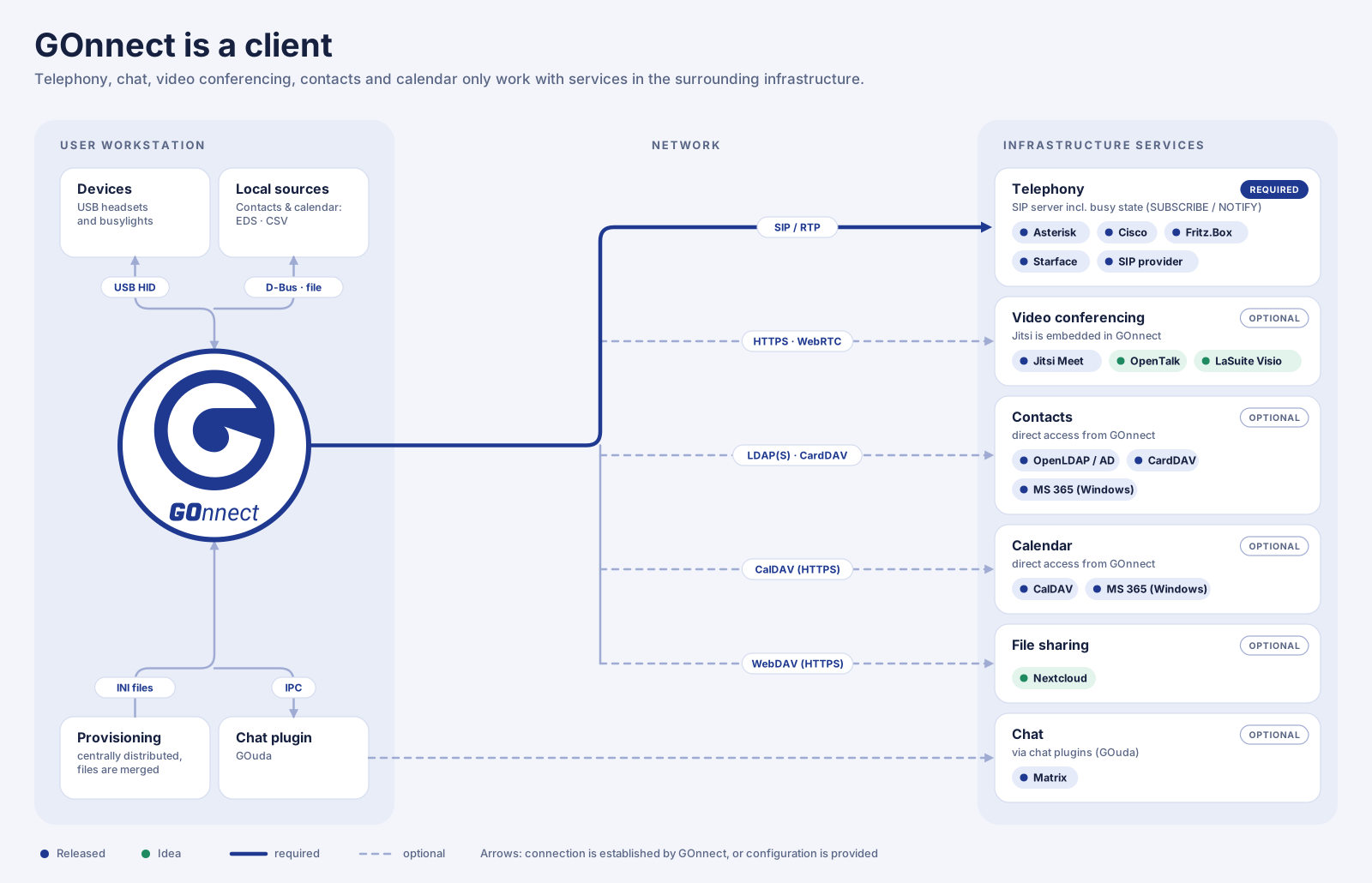
The following services have to be provided:
- Telephony (required)
-
A SIP server or SIP provider, for example Asterisk, Cisco, FRITZ!Box or STARFACE. To show whether a contact is busy, the server must support SUBSCRIBE/NOTIFY. See SIP/Telephony.
- Video conferences (optional)
-
A Jitsi Meet server. GOnnect embeds Jitsi Meet directly. See Video conference.
- Contacts and calendars (optional)
-
An LDAP directory (for example OpenLDAP or Active Directory), CardDAV and CalDAV servers, or Microsoft 365 (Windows only). On Linux, GOnnect also uses the local contacts and calendars of the Evolution Data Server. See Address Books and Calendars.
- Chat (optional)
-
A Matrix server. GOnnect connects to it through a chat plugin that is installed separately. See Chat.
- Configuration
-
INI files that are distributed centrally to the workstations, see Configuration.
Components marked green in the diagram are ideas. They are not available in GOnnect.
Setup
Installation
GOnnect runs on Linux and Windows.
Linux
On Linux, the app is provided as a Flatpak. This means that it can be installed via the software management tools (KDE Discover or GNOME Software).
Open the corresponding software management application and search for GOnnect. Choose to
install the application, and you should be done.
Optional features like the chat backend are provided as separate Flatpak plugins, see Chat.
Windows
On Windows, download the installer from the GitHub releases page and run it.
Preparing the desktop
The following steps apply to Linux desktops only.
Notifications
On KDE desktops, there is already a system tray enabled by default, so you don’t have to do anything here. For GNOME desktops, this functionality must be enabled:
-
Open the GNOME "Extensions" App
-
Activate the Extension
AppIndicator and KStatusNotifierItem Support
URL handler
You can set GOnnect to be the default application for handling telephony.
This enables you to click on tel: or sip: URIs and allow other applications
to open GOnnect when they want to start a call.
Use the settings menu of your desktop environment - for example, on GNOME, navigate to and change the entry for calls to GOnnect.
Desktop Search (GNOME only)
GOnnect has a search provider that lets you find contacts and start calls via the desktop search. This must be enabled manually.
In the GNOME settings, navigate to "Search", find the item "GOnnect" and enable it. You can adjust the search result order to your liking.
Now, when you press the Windows key on the keyboard and type a name or phone number of one of your contacts, it should show the search results. Activating a search result item starts the call.
Configuration
GOnnect, as a Qt application, uses INI files for configuration.
To allow a structured provisioning, the settings could be distributed over multiple files and GOnnect aggregates them in order of their file names.
To make the file order deterministic, the filename must follow the convention:
-
two digit number
-
a dash
-
a description
-
.confextension
00-number.conf
01-sip-base.conf
10-jitsi.conf
20-toggler.conf
40-addressbook.conf
99-user.conf
GOnnect process all config files in the order of their name and aggregates the setting. Settings in a later file override the setting in a former one.
The 99-user.conf is a special file and must be named exactly like this. This is the only file where GOnnect saves the user configuration for the UI settings. All other files are readonly.
If you use the Flatpak distribution of GOnnect, you find the config files in the following folder: $(HOME)/.var/app/de.gonicus.gonnect/config/gonnect
On Windows, the config files are located in %LOCALAPPDATA%\gonnect\GOnnect\gonnect.
Presets
GOnnect is bundled with some configuration presets. If GOnnect starts the first time and does not find a configuration, it asks the user to choose a preset. Some presets also include substitutions like username for which GOnnect will ask for.
Variable substitution
The config files may contain special strings which are replaced by the value of environment variables or by other config settings.
Environment variables
%ENV[<name of env var>]%
USER[account0]
...
userUri=sip:%ENV[USER]%@example.net
...Config setting
The substitution can replace a setting with a previously defined value.
%CFG[<a setting definition>]%
The setting definition consists of the section heading (which is the part of an INI file in brackets) and the config name separated by a forward slash.
This only works, if the value is defined in an earlier processed file or section.
number in the generic section[toggler_0]
...
subscribe=sip:*2%CFG[generic/number]%@example.net
...