Tip of the day
This section shows some common use cases.
Start a video conference
Just enter the room name in the search field and select the button Open room "<room name>".
Appointments
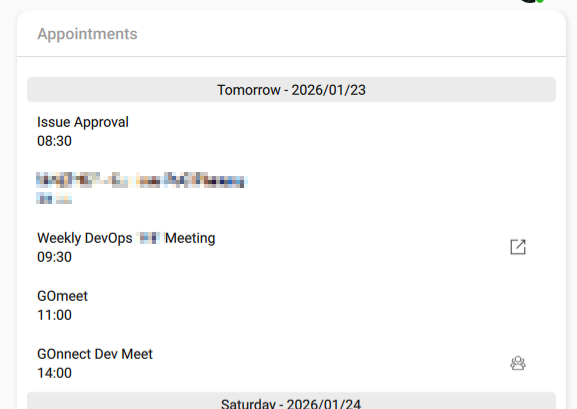
If you have a CalDAV connection configured, upcoming appointments will be shown in the Appointments widget.
All appointments found in the calendar source are shown.
If the appointment contains the same Jitsi Meet base URL in then location as the configure video conference server, a user group icon is shown on the right side. If you double click the appointment, GOnnect open the linked video conference.
If the appointment contains a URL which does not correspondent to the configured video conference server, a link symbol is shown on the right side. A double click open the link in your default browser.
How the Headset driver works
GOnnect supports many headsets in the way that it reacts on key presses or propagates the call state to the headset. Supported functions are:
-
Setting the on-hook state of the headset. Depending on the headset, this activates special functions, which only make sense during a call/video conference.
-
Hanging up a call/video conference by pressing the according button on the headset.
-
Syncing the mute state between GOnnect, headset and system.
-
Show call/conference information on the headset display
On the settings page, you can see, if the headset driver is active.
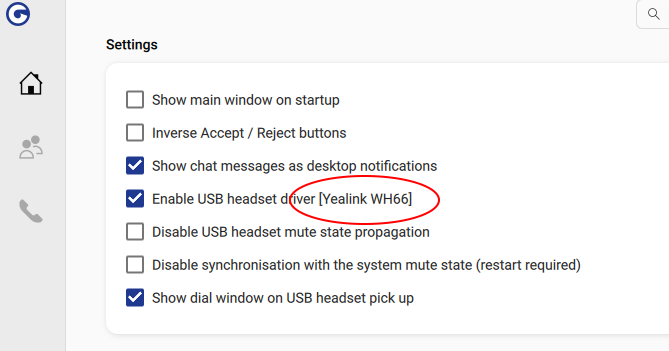
As GOnnect can not support any headset in the world, some functions may not work with your headset. To mitigate the occurrence of problems you can activate the checkbox "Disable USB headset mute state propagation" in the case, you have issues with mute. It is also possible that the kernel handles the mute toggle of the headset, if it is on-hook and causes out of sync states, as it is reported back to GOnnect. You can check "Disable synchronization with the system mute state (restart required)" to let GOnnect ignore the system mute state. If this all does not help, disable the headset support completely by unchecking the box "Enable USB headset driver".
There are also Workarounds which relates to headsets you can check.
GOnnect detects the headset on startup. So if you connect the headset you have to restart GOnnect to use the headset driver.
How to install the beta version
Beta versions are released at irregular intervals. These contain the current state of development or are used for testing prior to release.
You can install the beta version like so:
-
Install the Flathub Beta repository, if not already done:
flatpak remote-add --if-not-exists flathub-beta https://flathub.org/beta-repo/flathub-beta.flatpakrepo -
Install the GOnnect beta release:
flatpak install flathub-beta de.gonicus.gonnect